

Getting an API
For creating a custom connector you can use your own API’s but you can also use public API’s. For this we will be using the free public API “TheCoctailDB”.
Creating the connector
Go to PowerApps and on the left side choose “custom connectors”. If you can see it its because this is a premium feature. Its premium to create it and to use the connector so be aware of that.
In the overview of you custom connectors click on “New custom connector” on the top right to start creating your connector. You can start creating from templates but for this we will be using “Create from blank”.
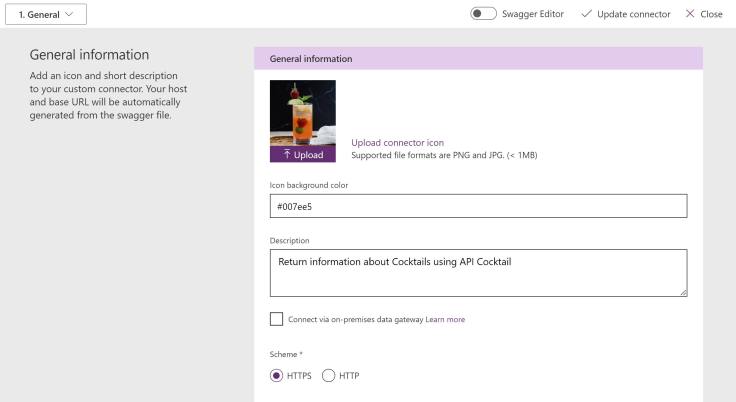
General
In the general tab you can add an icon or image for your connector.
You can add a description.
Select the Scheme.
Add add the host URL for this example it will be http://www.thecocktaildb.com.
For the Base URL use “/”.
Security
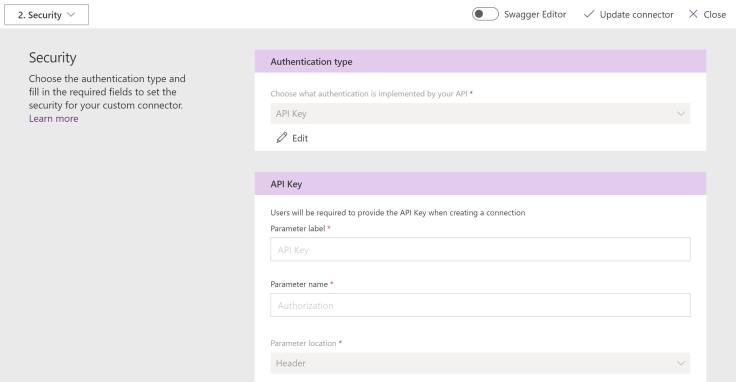
In the Security tab you can select how you want to authenticate with the API. You can choose no authentication, basic authentication, API key or OAuth2.0. For this example we are going to use API because in the documentation of the API you can find how they want you to authenticate.
After you select which authorzation you want to use just fill in the necessary steps or credentials.
Definition
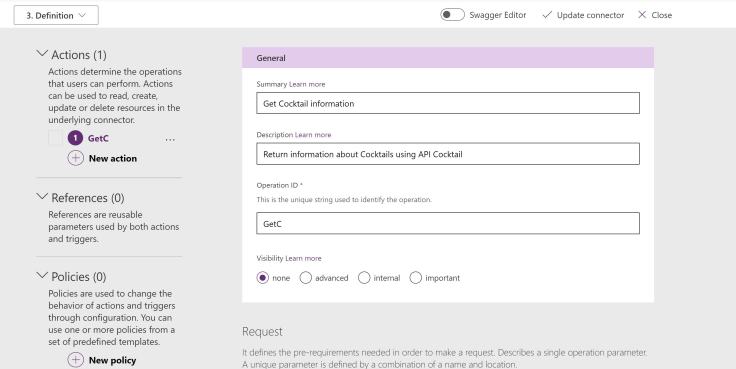
In the Definition tab we are going to add the actual action that we are going to allow the users to do. Start with adding a new action and fill in the general information. For the request we are going to “import from sample” because than you don’t have to define everything yourself. For this example select “GET” and add this “www.thecocktaildb.com/api/json/v1/1/search.php?s=margarita” URL. After you click on save everything will be setup for you.
Now you custom connector is ready for testing.
Adding connector to canvas app
Next we are going to use our custom connector in an canvas app.
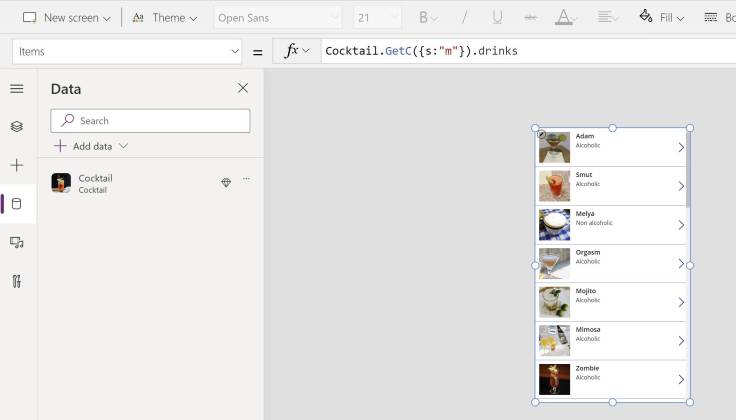
For this create a canvas app and select “add data”, search for the custom connector and add it. When you have authentication setup you first have to authenticate here before you can move on. Now you can just use it like any other connector. For example if you want to make a gallery with all the cocktail that have the letter m in the name you can make this call “Cocktail.GetC({s:”m”}).drinks”.
 Pauliens Blog
Plaats een reactie