

Pipeline for a WebPart
If you want to automate the packaging, build and deploy of your Webpart? Then you can follow these steps.
Create a SharePoint app registration
If you want to automate the deploy of your webpart to the app catalog you first need to create an SharePoint app registration. For this you need to go to “https://contoso.sharepoint.com/_layouts/15/appregnew.aspx” to create an new SharePoint app registration. After this you need to go to “https://contoso-admin.sharepoint.com/_layouts/15/appinv.aspx” to give this app permissions to deploy to the app catalog. Next you can actually start building the pipeline.
Build pipeline
Go to your project in azure DevOps. On the left side you can click on “pipelines”.
Select “new pipeline” on the top right.
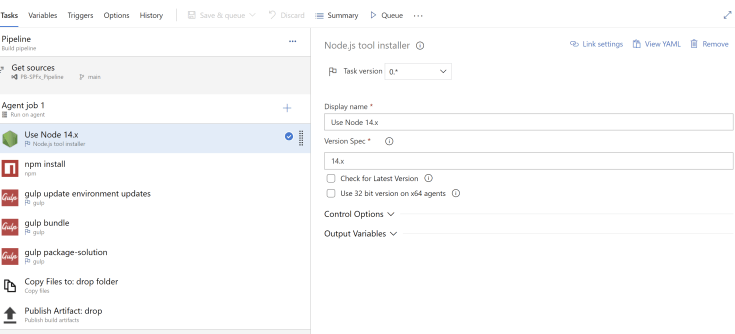
Select “classic editor” and select the repository and branch you want to use. Next we will start adding the steps of the pipeline to build the webpart.
- Use Node 14.x
- npm install
- gulp bundle
- gulp package-solution
- copy files to: drop folder
- Publish build artifact
Release package
To actually deploy the package to the app catalog your need to create a release. Click on release on the left under pipelines. Select “new release pipeline”.
Click on add an artifact to select which pipeline you want to use for the release.
To start adding steps for the actual build click on “add stage”. For this we will use an “empty job”.
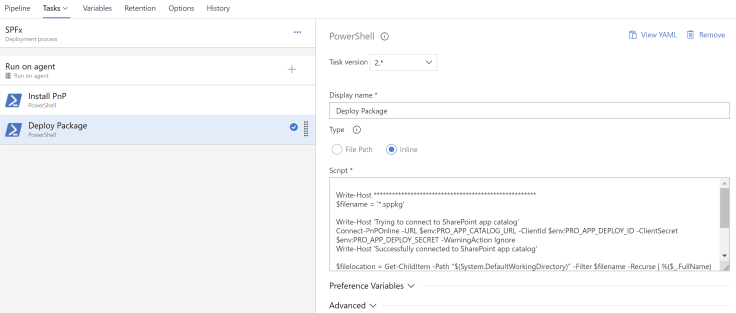
First we are going to install pnp with PowerShell.
“Install-PackageProvider -Name NuGet -Force -Scope “CurrentUser” Install-Module SharePointPnPPowerShellOnline -Scope “CurrentUser” -Verbose -Force”
After that we are actually going to deploy it.
“Write-Host ***************************************************** $filename = ‘*.sppkg’ Write-Host ‘Trying to connect to SharePoint app catalog’ Connect-PnPOnline -URL $env:PRO_APP_CATALOG_URL -ClientId$env:PRO_APP_DEPLOY_ID -ClientSecret $env:PRO_APP_DEPLOY_SECRET -WarningAction Ignore Write-Host ‘Successfully connected to SharePoint app catalog’ $filelocation = Get-ChildItem -Path “$(System.DefaultWorkingDirectory)” -Filter $filename -Recurse | %$_.FullName Write-Host $filelocation $result = Add-PnPApp -Path $filelocation -Publish -Overwrite Write-Host * The App package has successfully uploaded and published to the AppCatalog with id $result.id * “
For a release you can choose to release it manually or on a specific day and time to fully automate the process.
 Pauliens Blog
Plaats een reactie